How to Apply for a UK ETA on Your Phone: Step-by-Step Guide
Why Apply for a UK ETA on Your Phone?
Using your smartphone means you do not need access to a computer, scanner, or printer. This is especially helpful for travellers who are always on the go or who prefer to manage their travel documents digitally. The app also saves your progress, so you can start an application and finish it later if you get interrupted.
Another advantage is speed. The app uses your phone's camera to scan your passport and take a selfie, which reduces manual data entry and potential errors. Most applications are processed within minutes, giving you peace of mind quickly.
For example, a traveller from Australia applying at their hotel lobby might receive approval before they finish their coffee.
Understanding the UK ETA System
The UK Electronic Travel Authorisation (ETA) is a digital permission to travel to the United Kingdom. It is not a visa, but rather an electronic pre-screening that is electronically linked to your biometric passport. The system was introduced to enhance border security and streamline entry for eligible travellers.
You need a UK ETA if you are a national of a country that does not require a visa for short visits to the UK. This includes citizens of the United States, Canada, Australia, New Zealand, Japan, South Korea, Singapore, and many other nations. The ETA allows you to stay in the UK for up to six months for tourism, business, study, or transit purposes.
It is important to note that the ETA is valid for multiple entries over a period of two years, or until your passport expires, whichever comes first. Each time you travel to the UK within this period, your ETA will be automatically recognised at the border. For instance, a business traveller from Japan can use the same ETA for several trips to London for meetings over two years.
Checking Your Eligibility Before You Apply
Before you start the application process, you should confirm that you are eligible for a UK ETA. The first requirement is that you hold a biometric passport from an eligible country. Your passport must have the gold camera symbol on the cover, indicating it contains an electronic chip with your personal data.
You must also intend to visit the UK for a short stay of up to six months. The ETA is not suitable for those who plan to work, study for longer periods, or settle in the UK. If your purpose of travel falls outside these categories, you may need to apply for a different type of visa instead.
Additionally, you should have no serious criminal convictions or previous immigration violations that could affect your application. The Home Office will check your background against security databases. If you are unsure about your eligibility, you can review the full list of eligible nationalities on the official government website or consult our guide on who needs a uk eta.
What You Need Before You Start
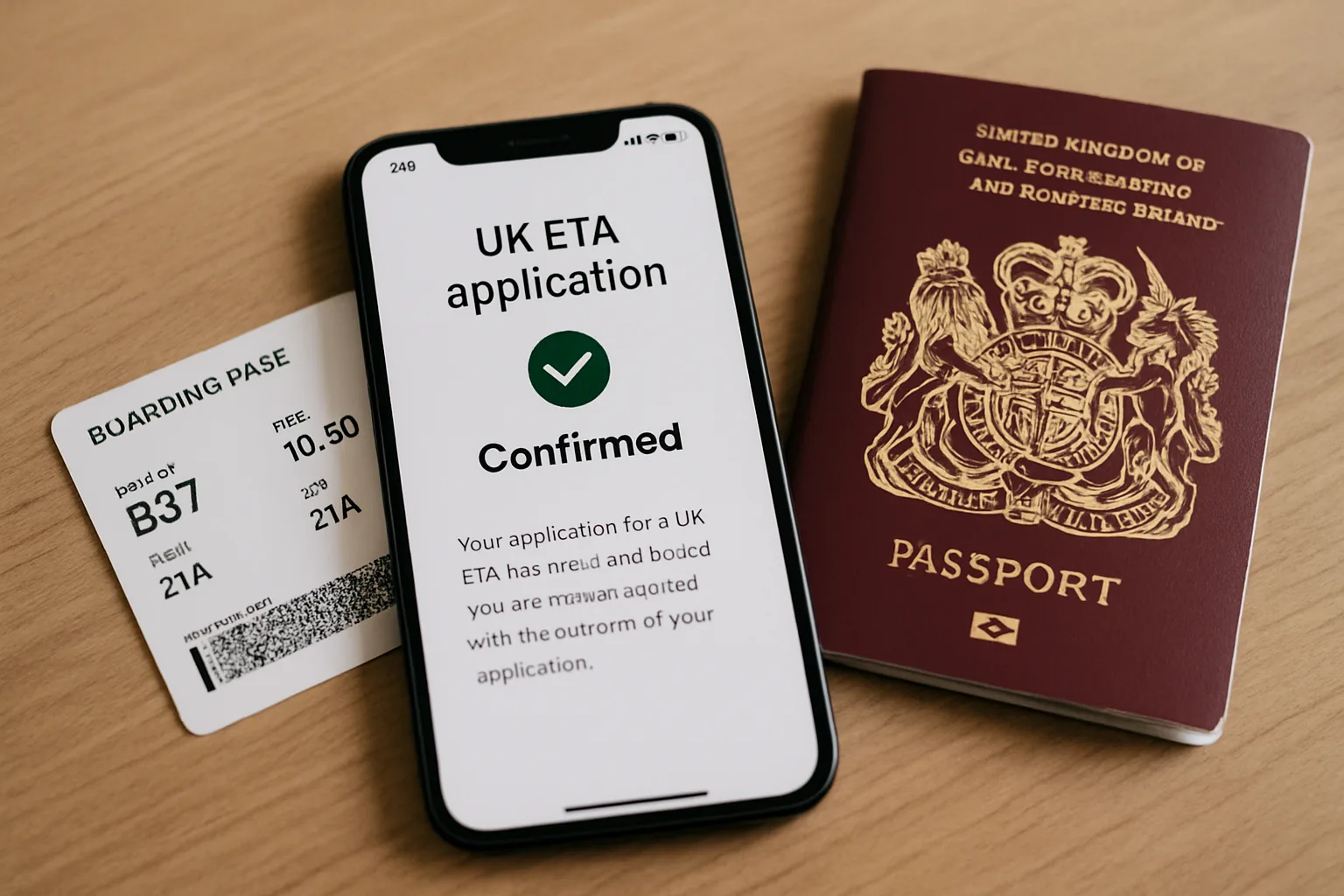
Before you open the app, gather these things. Having them ready makes the process smooth and fast.
- A biometric passport – Your passport must have the gold camera symbol on the cover. It should be valid for the whole of your stay. If your passport doesn't have a chip, you can't use the app – you'll need to apply online via a computer.
- A compatible smartphone – The app works on iOS (iPhone 6s or newer, iOS 13+) and Android (version 6.0 or higher). You need a working camera to scan your passport and take a selfie.
- A valid email address – You'll receive your ETA confirmation and updates there. Make sure you can access it on your phone.
- A payment method – The UK ETA costs £20 per person. You can pay by credit or debit card (Visa, Mastercard, American Express, etc.). Some prepaid cards may not work.
- Your travel details – You'll need your flight or ferry booking reference, your accommodation address (if known), and your intended travel dates. You don't need to have booked everything yet – you can apply up to 3 months before travel.
If you're unsure about the requirements, check the full uk eta application requirements page before starting.
Step 1: Download the Official UK ETA App
Open the App Store (iOS) or Google Play Store (Android) and search for "UK ETA". Look for the app published by the Home Office – it's called "UK ETA" and has a blue icon with the Union Jack and a passport symbol. Download it for free.
Beware of unofficial apps. Some third-party apps charge extra fees or ask for unnecessary permissions. Stick to the official one.
It's free to download and use – you only pay the £20 application fee inside the app.
Once installed, open the app. You'll see a welcome screen with a "Start" button. Tap it.
Step 2: Create an Account or Sign In
The app asks you to create an account using your email address. You'll need to set a password. This account lets you save your application and return to it later if you get interrupted.
Enter your email address and create a strong password (at least 8 characters with a mix of letters, numbers, and symbols). The app will send you a verification code by email. Check your inbox – it usually arrives within a minute.
Enter the code to verify your email.
If you already have an account (for example, if you applied for a previous ETA), you can sign in directly.
Step 3: Scan Your Passport
Now the app asks you to scan your passport's data page. This is the page with your photo and personal details.
Hold your phone over the page so it's flat and well-lit. The app will automatically detect the page and capture the information. Make sure the text is clear and not blurred.
The app reads your name, date of birth, passport number, and nationality from the machine-readable zone (the two lines of numbers and letters at the bottom).
If the scan fails, try adjusting the lighting or angle. You can also manually enter the details if scanning doesn't work after a few tries.
Step 4: Take a Selfie
The app asks you to take a selfie. This is used to confirm your identity and link your face to your passport. It's not stored permanently – it's checked against your passport photo.
Find a well-lit area with a plain background. Remove glasses, hats, or anything covering your face. Hold your phone at arm's length and follow the on-screen guide.
The app will take the photo automatically when it detects a good shot.
Make sure your face is centred and clearly visible. If the app rejects the photo, try again in better lighting.
Step 5: Answer the Questions
You'll now answer a series of questions about your travel plans and background. These include:
- Travel details – Your intended travel dates, flight or ferry number, and accommodation address. If you haven't booked yet, you can provide approximate details. You can update them later if needed.
- Personal information – Your current occupation, home address, and contact number.
- Security questions – About criminal convictions, immigration history, and past travel to certain countries. Answer honestly – false information can lead to refusal or cancellation.
Take your time. You can save your progress and come back later. The app times out after 20 minutes of inactivity, but your data is saved.
Step 6: Review and Pay
Before paying, review all the information you entered. Check your name, passport number, and travel dates carefully. A small typo could cause problems at the border.
If everything looks correct, proceed to payment. The fee is £20 per person (as of 2026). You can pay by credit or debit card.
The app uses secure payment processing – your card details are encrypted.
Enter your card number, expiry date, and CVV. The app may ask for 3D Secure verification (a code sent to your phone by your bank). Complete the payment.
You'll receive a confirmation screen and an email with your ETA reference number. Save this email – you'll need it if you need to check your status or update your details.
Step 7: Wait for Approval
Most applications are approved within minutes. You'll receive an email saying your ETA has been granted. The approval is linked electronically to your passport – you don't need to print anything.
In some cases, it can take up to 72 hours. If you haven't heard back after 3 working days, you can check the status in the app or contact the Home Office. Don't book non-refundable travel until you have your ETA.
If your application is refused, you'll receive an email explaining why. You may be able to reapply or apply for a visa instead. Refusals are rare for genuine travellers.
What If You Don't Have a Smartphone?
You can still apply online using a computer or tablet. The online application is similar to the app – you fill in the same details and upload a digital photo. You'll need a way to scan or photograph your passport and take a selfie (a webcam or digital camera works).
If you can't apply online yourself, a friend, family member, or travel agent can apply on your behalf. They'll need your passport and your consent.
Common Problems and How to Fix Them
Here are the most common issues travellers face when applying on their phone – and how to solve them.
App Crashes or Freezes
Make sure your phone's operating system is up to date. Close other apps to free up memory. If the app keeps crashing, uninstall and reinstall it.
Your progress is saved in your account, so you won't lose your data.
Passport Scan Fails
Good lighting is key. Avoid shadows on the passport page. Hold the phone steady and parallel to the page.
If it still fails, you can manually type the details – look for the "Enter details manually" option.
Selfie Not Accepted
Make sure your face is evenly lit and not in shadow. Remove glasses and any headwear (unless for religious or medical reasons). The app may reject photos with a busy background – use a plain wall.
Payment Declined
Check that your card has sufficient funds and is enabled for online transactions. Some prepaid cards don't work. Try a different card.
If the problem persists, contact your bank.
Email Not Received
Check your spam or junk folder. Add the sender ([email protected]) to your contacts. If you still don't see it, you can check your application status in the app.
How Much Does a UK ETA Cost?
The UK ETA fee is £20 per person. This is the same whether you apply on your phone or online. There are no additional charges for using the app – it's free to download.
Be cautious of third-party websites that charge extra fees for submitting your application. Always use the official app or the gov.uk website.
For more details on fees and what's included, see our page on how much does a uk eta cost.
Who Needs a UK ETA?
You need a UK ETA if you are a citizen of a country that does not need a visa for short visits to the UK, but is not a British or Irish citizen. This includes nationals of the US, Canada, Australia, New Zealand, Japan, South Korea, Singapore, and many others. The full list is on the government website.
You do not need an ETA if you have a UK visa, a British passport, or right of abode. You also don't need one if you are only transiting airside (staying in the airport) – but check the rules for your specific airport and nationality.
For a complete breakdown of who must apply, visit our guide on who needs a uk eta.
Tips for a Smooth Application
- Apply early – You can apply up to 3 months before your trip. Don't leave it to the last minute. While most are approved quickly, it's better to have it ready.
- Use good lighting – For both the passport scan and selfie, natural daylight works best. Avoid direct sunlight that creates glare.
- Double-check your details – A misspelled name or wrong passport number can cause delays. Review everything before paying.
- Keep your ETA reference number – You'll need it if you need to contact the Home Office or update your application.
- Check your email regularly – The Home Office may contact you if they need more information. Respond promptly to avoid delays.
What Happens at the Border?
When you arrive in the UK, the border officer will scan your passport. Your ETA is linked electronically, so they'll see it immediately. You may be asked questions about your trip – have your return ticket and accommodation details handy.
Having an ETA does not guarantee entry – the border officer still has the final say. But if you've answered honestly and have valid travel plans, you should be fine.
Understanding ETA Validity and Renewal
Your UK ETA is valid for two years from the date of approval, or until your passport expires, whichever comes first. During this period, you can make multiple trips to the UK for short stays. Each visit can last up to six months.
If you get a new passport before your ETA expires, you will need to apply for a new ETA. The old one is linked to your previous passport and cannot be transferred. For example, if you renew your passport after one year, you must submit a fresh application.
You can check the expiry date of your ETA in the app or by logging into your account. It is a good idea to note this date and set a reminder to reapply if you plan to travel again. The renewal process is identical to the initial application.
Applying for a UK ETA for Children and Groups
Each traveller, including children and infants, must have their own UK ETA. There is no family application option, so you will need to submit separate applications for each person. The fee of £20 applies per individual.
When applying for a child, you can use your own smartphone to complete the process. You will need the child's biometric passport and take a selfie of them. For very young children, you may need to hold them steady and ensure their face is clearly visible in the photo.
If you are travelling with a group, such as a family or tour group, you can apply for everyone at the same time using the same device. Simply log out of your account after each application and create a new account for the next person, or use the same account to manage multiple applications. The app allows you to save and track each application separately.
What to Do If Your ETA Is Refused
If your UK ETA application is refused, you will receive an email explaining the reason. Common reasons include providing incorrect information, having a criminal record, or previous immigration issues. The email will also outline your options.
You may be able to reapply if the refusal was due to a minor error, such as a typo. Correct the mistake and submit a new application. However, if the refusal is based on more serious grounds, you may need to apply for a standard visitor visa instead, which involves a more detailed assessment.
In some cases, you can request a review of the decision. Contact the Home Office using the details provided in the refusal email. Be prepared to provide additional documentation to support your case.
It is advisable to seek professional advice if you are unsure about your situation.
Using the App for Multiple Applications
If you are applying for ETAs for several people in your travel group, the app makes it easy to manage multiple submissions. You can use the same account to start new applications for different individuals. Each application is saved separately with its own reference number.
The app also allows you to track the status of each application from a single dashboard. This is especially useful for group travel, such as a school trip or a family holiday. For instance, a tour leader from Canada can monitor the progress of all group members' applications in one place.
Remember that each person must have their own biometric passport and pay the £20 fee. You cannot combine applications into one payment. However, the convenience of using the same device and account streamlines the process significantly.
How to Update Your ETA Details
If your travel plans change after you receive your ETA, you can update certain details through the app. You can modify your travel dates, flight numbers, or accommodation address. However, you cannot change your name, passport number, or nationality after submission.
To update your details, log into your account in the app and select the relevant application. Look for an "Update" or "Edit" option. Enter the new information and save it.
The changes are usually reflected immediately in the system.
If you need to update critical information like your passport number, you may need to cancel your existing ETA and apply for a new one. Contact the Home Office for guidance in such cases. Always ensure your details match your travel documents to avoid issues at the border.
Security and Privacy When Using the App
The official UK ETA app uses encryption to protect your personal data. Your passport details, selfie, and payment information are transmitted securely. The Home Office follows strict data protection regulations to safeguard your information.
Do not share your account password or ETA reference number with anyone you do not trust. Scammers may attempt to trick you into revealing these details. Always download the app from the official App Store or Google Play Store to avoid malicious software.
If you lose your phone or suspect unauthorised access to your account, contact the Home Office immediately. You can also change your password through the app. Keeping your device locked with a PIN or biometric lock adds an extra layer of security.
Key Takeaways
- Applying for a UK ETA on your phone is quick and easy – download the official app, scan your passport, take a selfie, answer questions, and pay £20.
- Most applications are approved in minutes, but allow up to 72 hours. Don't book non-refundable travel until you have your ETA.
- You need a biometric passport, a compatible smartphone, and a payment method. No computer or printer is required.
- Always use the official app or gov.uk website to avoid extra fees. Third-party sites are not recommended.
- Check the latest requirements on the official government website before you apply, as rules can change.
This article is for general guidance only. Always verify the latest requirements with official sources before travelling.
Official sources
Check the authority for current fees and requirements before applying.
Frequently asked questions
Can I apply for a UK ETA on an iPad or tablet?
What if my selfie doesn't match my passport photo?
Can I save my application and finish later?
Do I need to print anything after I get my UK ETA?
What happens if my UK ETA application is refused on my phone?
This article is for general informational purposes only. Visa and travel authorisation rules change frequently. Always check the official government website before travelling.

Written & reviewed by
Can OTUTravel Authorisation Editor
Can OTU is the editor of ETA Travel Assistant, specialising in UK ETA, Schengen ETIAS, NZeTA and ESTA travel authorisations. Can monitors official government sources and policy updates to ensure every guide is accurate, current and genuinely useful for travellers.
View all guides →